
You're visiting a website — maybe searching for a software download, reading an article, or clicking a link from an email. Suddenly, a message pops up: "Verify you're human. Press Windows+R, paste the code below, and hit Enter."
Read More
0 Comments Click here to read/write comments
Tags: Malware, Small Business, IT Basics, Cybersecurity, Social Engineering

0 Comments Click here to read/write comments
Tags: AI, Productivity, IT Basics, Automation
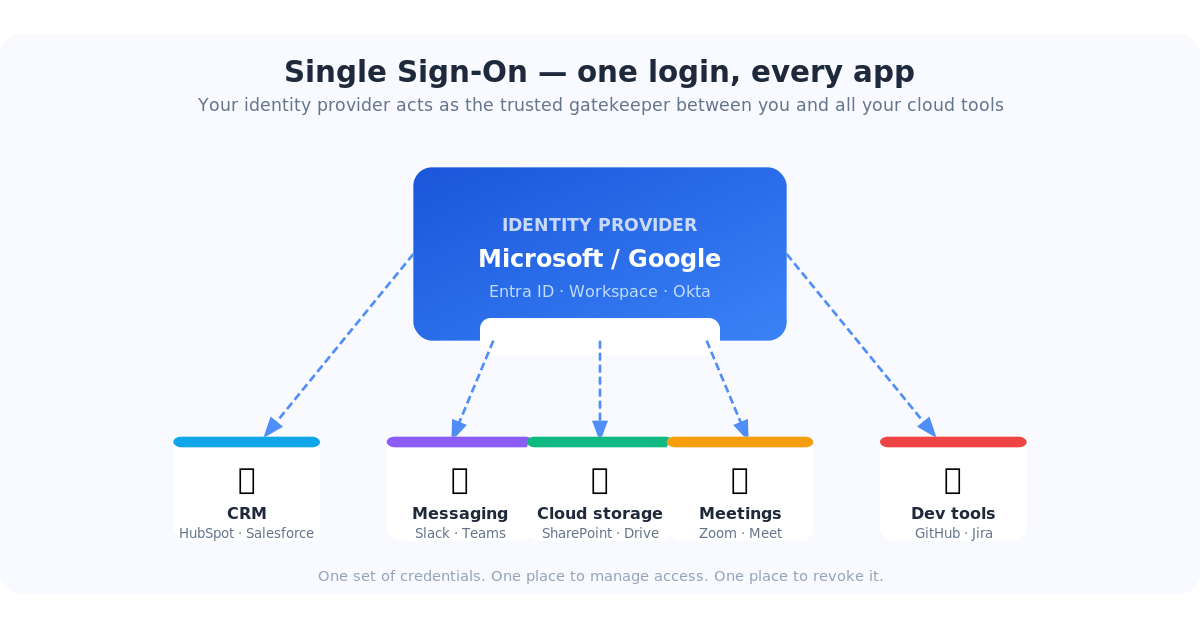
If you've ever clicked "Sign in with Microsoft" or "Log in with Google" instead of typing a password, you've already used Single Sign-On (SSO). It's one of those IT concepts that sounds complicated but is actually pretty elegant once you see what it does — and once you understand what's at risk when you skip it, it stops feeling optional.
Read More
0 Comments Click here to read/write comments
Tags: Microsoft, Password Management, IT Basics, Cloud Apps, Cybersecurity, SSO
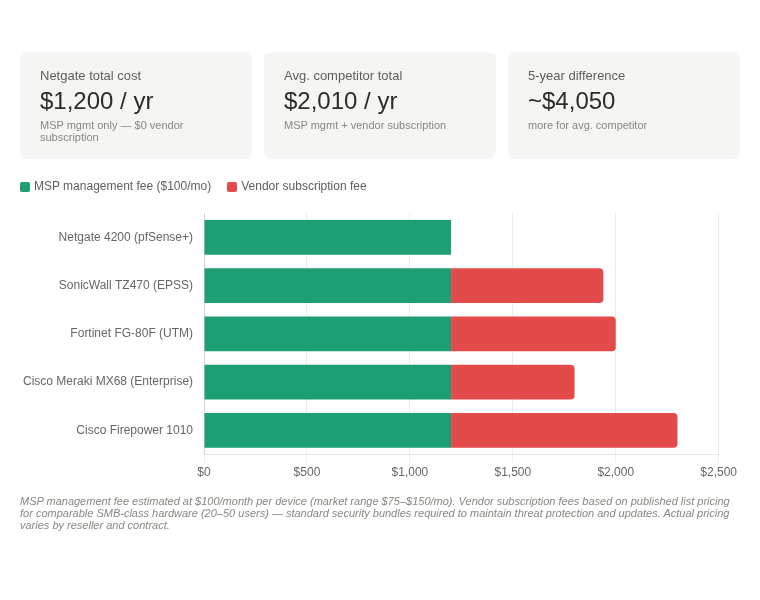
Every year, small businesses across the country quietly hand over hundreds — sometimes over a thousand dollars — to firewall vendors for the privilege of keeping their security features turned on. Not for new hardware. Not for better protection. Just to maintain the features they already paid for when they bought the device.
Read More
0 Comments Click here to read/write comments
Tags: IT Support, Small Business, Managed Services, Cybersecurity, Networking, Firewall
Today is Earth Day — which makes this the perfect moment to talk about something most businesses overlook: e-waste, and why that old inkjet in the corner can't just go in the trash.
Read More
0 Comments Click here to read/write comments
Tags: IT Support, Small Business, Managed Services, E-waste, Electronics Recycling, Green IT, Earth Day
You've probably tried ChatGPT or Microsoft Copilot at this point — typed in a question, gotten a decent answer. Maybe you were impressed. Maybe you thought, this is useful, but it doesn't know anything about my business.
Read More
0 Comments Click here to read/write comments
Tags: AI, Productivity, IT Basics, Automation, Cloud Apps
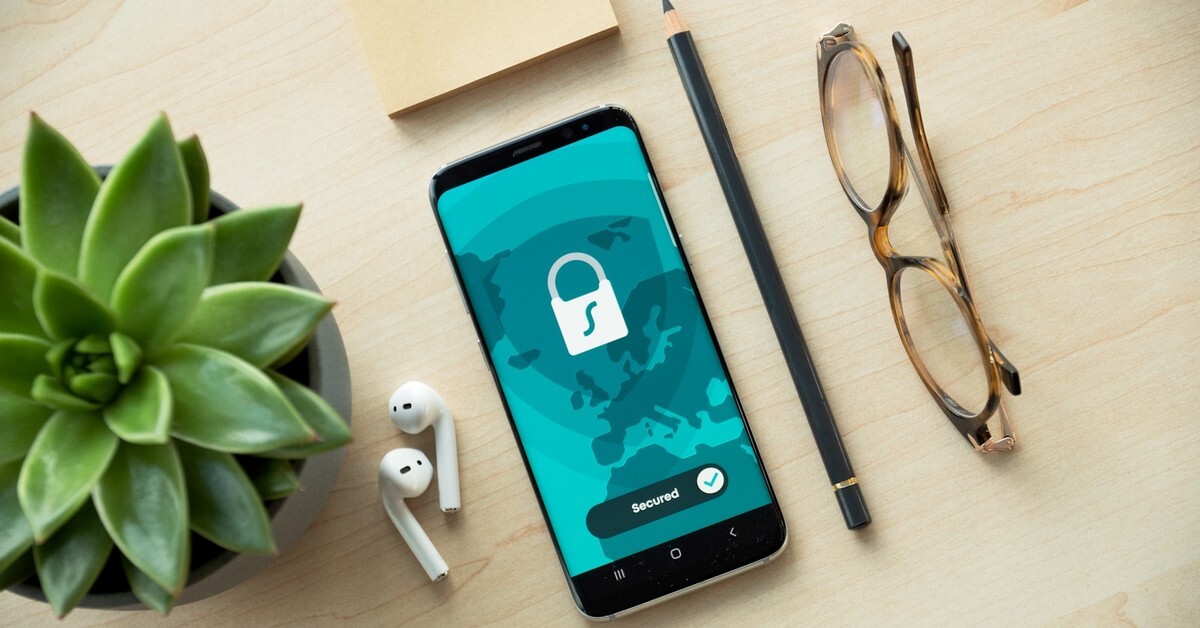
You've seen the button a hundred times: "Sign in with Google" or "Connect your Microsoft account." You click it, a window pops up, you approve access, and suddenly your new app knows who you are — without you ever typing your email password into it.
Read More
0 Comments Click here to read/write comments
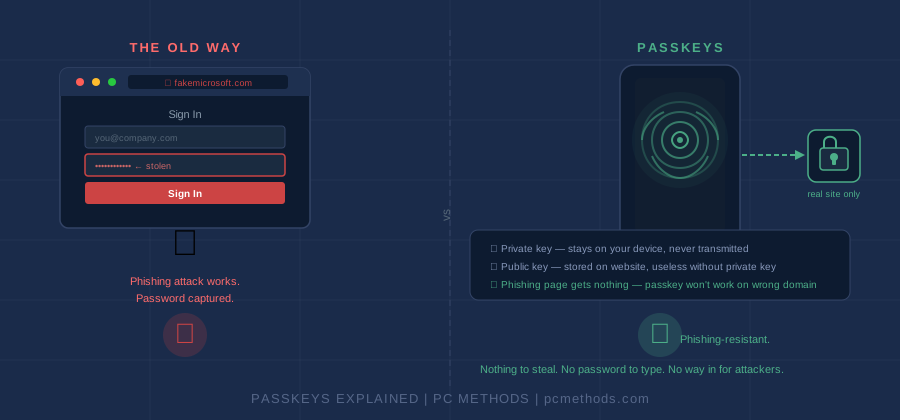
Passwords are a problem that nobody has fully solved. They get reused, forgotten, phished, leaked in data breaches, and written on sticky notes next to monitors. Multi-factor authentication helps, but it adds friction — and sophisticated attackers have learned to bypass SMS codes and even some authenticator apps.
Read More
0 Comments Click here to read/write comments

At a time when cyberattacks, ransomware, and online fraud continue to rise, understanding the basics of cybersecurity has never been more important. Yet many people still hold onto common myths and misconceptions that leave them vulnerable. Cybersecurity isn’t just a technical field—it’s often about awareness, alertness, and simple everyday habits.
Read More
0 Comments Click here to read/write comments

When was the last time you took a close look at how well your cloud operations are actually performing? For many organizations, especially manufacturing and distribution firms working with complex systems—the cloud is essential, yet often under-evaluated. A complimentary Cloud Capability Assessment can offer the clarity you need to strengthen productivity, efficiency, and long-term stability across your business systems.
Read More
0 Comments Click here to read/write comments
Source: MastersInIT.org
If you’re in the market for a career change or still in school and thinking about your future, consider the growing economy around Big Data and Data Science. It’s not just for computer programmers, mathematicians and statisticians — though that’s a strong factor — but also for business strategists, graphic designers and many more. In fact, Big Data will affect many aspects of our lives and Data Science will require new ways of thinking about all the information that we collect.
0 Comments Click here to read/write comments
Tags: Redundancy, data extraction

All companies need to be prepared for emergencies; however, there are an astounding percentage that are not. If some sort of catastrophic event were to happen, would your company be ready? Do you have a disaster recovery plan in place that will get you through? Keep in mind that the term 'Disaster' applies to many different types of events, not only encompassing events brought by mother nature, but also accidental, or deliberate human influence such as fire, flood, a loss of communication or even a virus. In order to ensure total preparedness, there are two important key plans you should consider. The first is a Business Continuity Plan (BCP), and the second a Disaster Recovery Plan (DRP). While the two have many things in common, the main differentiator is that a DRP focuses on recovery whereas a BCP allows for continued business until recovery is accomplished.
There are several steps to take in order to build your BCP and DRP plans and we've included some tips below on how to get started. Your peace of mind and the future of your company is of the utmost importance and we hope you find this information helpful.
0 Comments Click here to read/write comments
Tags: IT services, DR, Disaster Recovery, Redundancy, Backup

Upgrading from SQL Server 2019 is more than a routine task—it’s a necessary move to keep your organization secure, compliant, and prepared for modern data demands. With Microsoft ending support for SQL Server 2019, businesses still relying on this version face growing risks and increasing maintenance burdens. Here’s what you can expect when planning your upgrade and why SQL Server 2022 is a reliable next step.
Read More
0 Comments Click here to read/write comments

Modernizing legacy workloads can feel complicated, especially when you’re balancing cost, compatibility, and long-term stability. We understand that many organizations want to move forward without risking business continuity. Microsoft Azure delivers a practical and dependable way to modernize legacy workloads while helping you get more value from your existing investments. Azure offers flexibility, high compatibility, and hybrid capabilities—making the transition easier and more efficient for IT teams.
Read More
0 Comments Click here to read/write comments

Staying compliant with GDPR and other international standards can feel overwhelming for organizations of any size. Requirements shift, regulations tighten, and teams are expected to keep data secure while still supporting everyday operations. That’s where strong data governance steps in—and why having the right tools and support matters.
Read More
0 Comments Click here to read/write comments
Tags: gdpr
Keeping up with invoicing shouldn’t feel like a full-time job. Yet many businesses still spend hours creating, tracking, and managing invoices—time that could be used to improve operations or support customers. The good news? You can streamline the entire invoicing process with tools that are already within reach.
Let’s take a closer look at how today’s invoice tools can help you save time, stay organized, and present a professional image to your clients.
Make Every Invoice Look Professional Without the Extra Work
First impressions matter, especially when invoices represent your brand. With Office 365, you have access to more than 100 templates that help you create clean, polished invoices from anywhere. Whether you’re at your desk or working remotely, it’s simple to generate professional-looking documents that keep your billing accurate and consistent.
Having customizable templates ready to go not only speeds up your workflow, but it also means less room for errors. Instead of formatting documents from scratch, you can focus on getting invoices out quickly and getting paid on time.
Are Your Current Systems Holding You Back?
Many businesses rely on accounting or ERP systems that no longer match the way they work. When these systems feel restrictive or outdated, daily tasks like invoicing take longer than they should. That’s where we come in.
If your accounting or ERP platform has you boxed in, we can adjust it, retrain your team, enhance it with add-on tools, or guide you toward a better-fit system. We’ve seen firsthand how quickly productivity improves once a system is properly configured for a company’s unique workflow.
For those using Sage300cloud—formerly known as Accpac Advantage—we provide dedicated support. And if you’re managing operations with older software like SBT, ACCPAC, Sage Pro, or Vision Point, we can help you keep those systems running smoothly or make them work better for your current needs. We support all versions of SBT, including today’s Sage Pro 2011.
With more than twenty-six years of hands-on work in these systems, we’ve built long-term relationships with clients who rely on us to keep their business software dependable and efficient.
Why Businesses Trust PC Methods, Inc.
When it comes to choosing the right tools for invoicing and business management, guidance matters. PC Methods, Inc., based in the Greater Chicago Area, is a trusted ERP and business software consulting firm serving manufacturing and distribution companies.
Our approach is simple: give clients exactly what they need—no more, no less. As we like to say, “We won’t sell you a jackhammer when a tack hammer will work just as well.” Every business operates differently, so we design and build cost-effective, flexible information systems that support each client’s specific goals.
Our team includes Sage Pro consultants, FoxPro consultants, Sage 300 (Accpac) consultants, and Sage CRM consultants with more than 45 years of combined experience. We also provide business systems consulting, ERP guidance, accounting data analysis, and software support for manufacturing and inventory operations. And for companies in the Chicago area, we offer reliable business network support.
When clients recommend us, it’s because they know we listen, understand their needs, and bring practical solutions that improve their day-to-day operations.
Ready to Improve How You Handle Invoices?
If invoicing takes longer than it should—or if your current systems make simple tasks overly complicated—it may be the right time to consider better tools and smarter support. With the right setup, your business can save time, reduce errors, and send invoices that reflect the professionalism of your brand.
We’re here to help you get there. Let us know what challenges you’re facing, and we’ll work with you to find the solution that makes the most sense for your business.
It's easy to look like a pro. Create professional-looking invoices from anywhere--thanks to more than 100 templates provided in Office 365.
Read More
0 Comments Click here to read/write comments

When a small business begins to grow, one of the first pressure points is often the IT infrastructure. Systems that once felt manageable can quickly become slow, outdated, or too limited to support rising demands. That’s where cloud migrations come in. Moving to the cloud can help your business stay flexible, secure, and ready for future growth. Here are five practical strategies to help guide that transition.
Read More
0 Comments Click here to read/write comments

Automated tools like anti-virus software, firewalls, and other computerized security technology can only go so far to eliminate the threat posed by a small army of professional hackers. Like most crimes, the human element is critical for the cyber crime to be successful. To combat this, I sorted out 7 urgent reasons why you need to create your "human firewall" as soon as you possibly can. Employees are your last line of defense and need to become an additional security layer when attacks make it through all your technical filters.
Your users need to be trained to become a human firewall against cyber attack
- Phishing leads the IRS dirty dozen of scams
- Phishing is the use of phony email to obtain information or compromise systems. The Internal Revenue Service rounded up some of the usual suspects in its annual look at the Dirty Dozen scams you need to watch out for this year. It should come as no surprise that the IRS saw a big spike in phishing and malware incidents during the 2016 tax season because the agency has been very public about its battle with this scourge.
Read More
0 Comments Click here to read/write comments
Tags: Anti Virus, ransomware, phishing, vishing, spam
2 Comments Click here to read/write comments
Tags: Microsoft, Office 365, software as a service, subscription licensing

On Saturday, April 26, 2014, Microsoft Corp. reported to the United States Computer Emergency Readiness Team (a division of the Department of Homeland Security) that Microsoft Internet Explorer versions 6-11 had come under attack! Malicious hackers were exploiting a use-after-free vulnerability that could allow unauthorized remote code execution. This could lead to the complete compromise of an affected computer system.
0 Comments Click here to read/write comments
Tags: Blogging, Blog, IT Support, Anti Virus, Microsoft, Internet Explorer

0 Comments Click here to read/write comments
0 Comments Click here to read/write comments
Tags: Disaster Recovery, Backup, Backup to the cloud, Symantec, CryptoLocker, Managed Services
2 Comments Click here to read/write comments
Tags: Backup, Backup to the cloud, Anti Virus, Symantec, Malware, Security Software, CryptoLocker, ransomware

1 Comment Click here to read/write comments
Tags: IT services, Shareware, Blogging, Blog, Article Publishing, IT Support, Tablet Computer, Customer Engagement, Web Content, targetted Marketing

Imagine a school or library that has access to the web. What would that school need to do to protect kids from internet porn, gambling, etc. ? The federal government has already considered this and passed a law called "The Child Internet Protection Act" (CIPA) and the "Neighborhood Internet Protection Act" were passed by Congress on April 20, 2001 to address issues concerning questionable websites, such as porn or gambling or hacking, that children can get free access too. It is sad, but true that these questionable websites sometimes target children. These laws basically impose certain certifications and requirements on schools and libraries who receive funds from the E-rate Federal internet access and connection discount pricing package. Even if a school does not receive federal funds, it is highly advisable to restrict certain types of internet access. You can still be sued if you do not protect the kids from questionable material.
Read More
How does one become CIPA compliant? If you just block a list of websites, it won't work because the bad guys are always jumping from url to url and it would be an impossible chore for one person to scan the net for all sites of a banned category. So, you go out and buy a filtering and/or blocking device that plugs into the system between where your internet service enters the building and the first router in line after that. These usually (but not always) come with a subscription to monitor the incoming material and check it against a constantly updated list of banned websites. WebSense will sell you a server, for several thousand dollars or more, complete with custom CIPA compliant programming for your particular school or library, which includes the subscription. Sounds ok, right? Surprise, you are still not CIPA compliant! Yes, you have stopped all of the incoming questionable material and have severely restricted the kids’ access to Facebook and other social media while at school. At the same time you have restricted You Tube, but can still use it for selected very good and educational videos on You Tube. But YOU ARE STILL NOT CIPA COMPLIANT!
0 Comments Click here to read/write comments
Tags: Blogging, Blog, Web Content, Symantec, Security Software, Website Traffic