Modern finance teams no longer have the patience or risk tolerance for manual reconciliation methods that were built for another era. As transaction volumes increase and compliance expectations tighten, outdated accounting systems struggle to keep pace. We see this challenge repeatedly when organizations migrate away from legacy platforms that rely on disconnected ledgers, limited audit visibility, and error-prone posting processes. Bank reconciliation, in particular, becomes a bottleneck rather than a control point.
Sage 300Cloud approaches reconciliation differently. It was designed to centralize bank activity, enforce process discipline, and provide real-time financial clarity. Instead of reconciling after the fact, we reconcile with intention, accuracy, and control. This shift enables finance leaders to close faster, reduce adjustments, and maintain confidence in their numbers.
After organizations understand the foundational advantages, many ask where expert guidance fits into the process. That is often where a Sage 300Cloud consultant in Chicago becomes valuable, especially when internal teams want to maximize automation, module integration, and reconciliation efficiency without disrupting daily operations.
Built-in structure that legacy systems lack
One of Sage 300Cloud bank reconciliation’s defining strengths is its dedicated bank sub-ledger. Every bank-oriented transaction flows through a single module that is directly tied to the general ledger. Each bank record includes a unique bank ID, a mapped GL account, and relevant banking details, eliminating the fragmented workflows common in older systems.
We work within a reconciliation screen that simultaneously compares book balance, GL balance, and statement balance. With a single calculation action, newly entered transactions are reflected immediately. Legacy systems often require manual cross-checking across reports, increasing both time spent and risk exposure.
Reconciliation precision without forced posting
A critical advantage is control over posting timing. Sage 300Cloud prevents backdated reconciliation errors by enforcing calendar logic. We complete the entire statement review before posting, ensuring deposits, withdrawals, and service charges all reconcile to zero first. This discipline protects historical accuracy and prevents costly reversals that plague older accounting platforms.
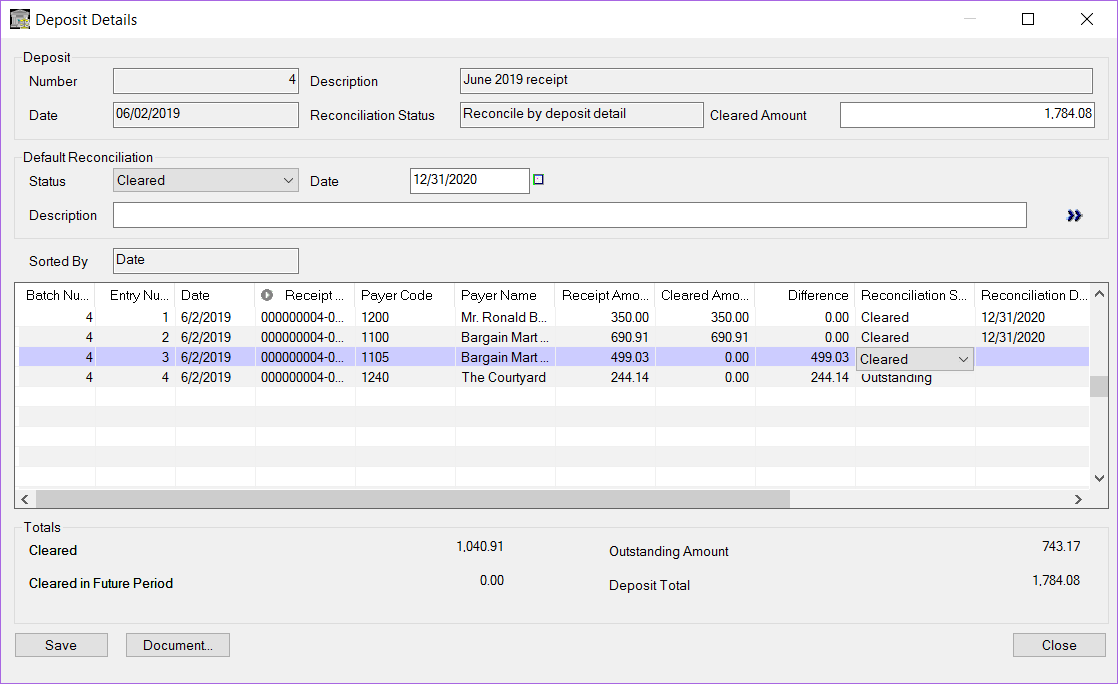
We also gain detailed reconciliation capabilities that legacy systems simply cannot replicate. Deposits can be reconciled at a granular level, allowing partial clears across statements. This is especially valuable for credit card settlements, merchant services, and high-volume AR environments.
Efficiency tools that scale with transaction volume
When discussing how to do bank reconciliation in Sage 300 Cloud, efficiency features play a central role. We can import bank transactions in OFX format, preserving transaction dates and memo details directly from the bank. This reduces manual entry, strengthens audit trails, and accelerates monthly close cycles.
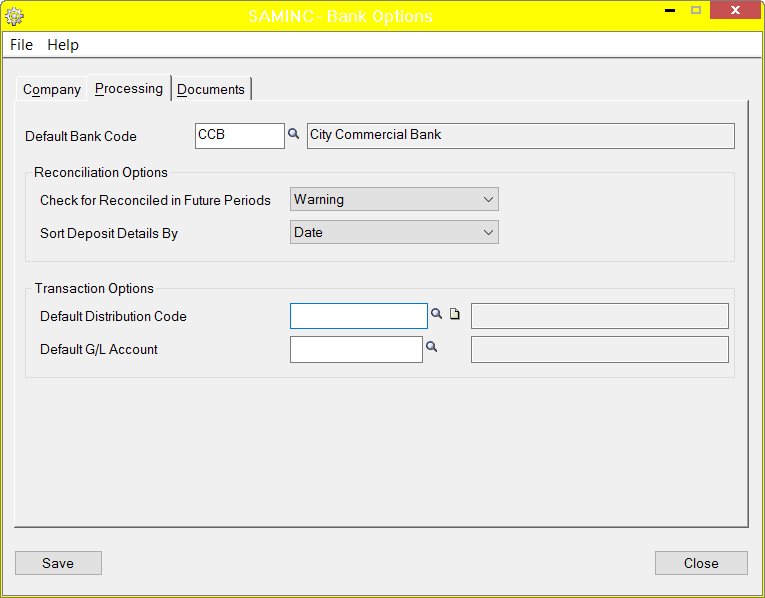
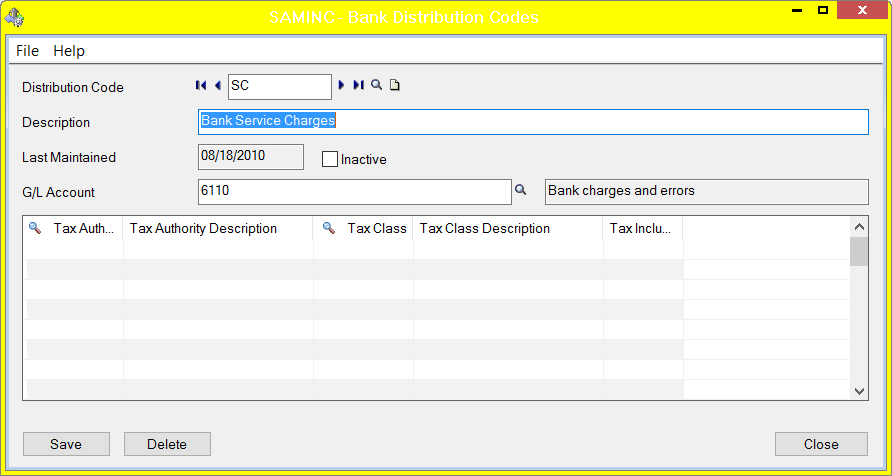
Additional setup efficiencies include assigning a default bank code to avoid misposted entries and using distribution codes to automate GL account selection for standard charges. These small configuration choices compound into meaningful time savings over the year.
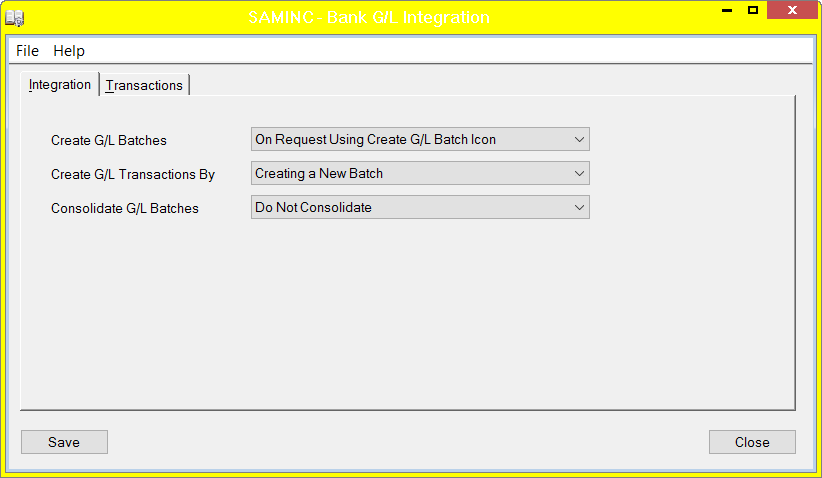
Another critical distinction from legacy systems is the flexibility of posting. By turning off auto-create GL batches until reconciliation balances to zero, we maintain complete control over corrections without generating unnecessary reversing entries or audit noise.
Clear separation from unrelated Sage products
It is essential to clarify that Sage 300Cloud bank reconciliation expertise is not interchangeable with Sage Pro or Sage Fixed Assets knowledge. These are separate platforms with distinct architectures. A Sage Pro consultant may not be familiar with Sage 300Cloud workflows, and expertise in Sage Fixed Assets does not necessarily imply proficiency in bank reconciliation. We focus exclusively on the systems we implement and support, ensuring accuracy rather than assumptions.
Why organizations trust a modern approach
Compared to legacy tools and even entry-level platforms, Sage 300Cloud delivers stronger controls, clearer visibility, and faster reconciliation cycles. Many teams find that once they adopt this process, returning to older systems feels inefficient and restrictive.
At Precision Computer Methods Inc., we help organizations implement these workflows with precision, ensuring reconciliation aligns with both operational needs and financial governance.
Organizations that invest in structured reconciliation, supported by a Sage 300 Cloud consultant in Chicago, gain long-term efficiency, reduced risk, and cleaner financial reporting. Mastering bank reconciliation in Sage 300 Cloud is not just a task; it is a strategic upgrade to your accounting operations. Contact us today to see how we can help you streamline reconciliation and move forward with confidence.
Sage 300 (formerly known as Accpac Advantage) has lots of features that make bank reconciliation and tying the balances to the GL easy. (link to the Tie GL article). In Sage 300, all bank oriented transactions flow to the BK module. Each bank record has a bank id, an associated GL number, and banking information such as the routing number which can be used for EFT’s and check printing.
Warning: Do not post reconciliations until the very end
There is a tempting "post" button at the bottom of the reconciliation screen. Wait until you are all done with the statement until clicking it. Sage 300 has a feature that you can't post reconciliations dated earlier than the highest calendar date. So, if you post a rec for a certain bank for Nov 30, 2021, you can't post for April 30, 2021 for that same bank afterwards.
Nice Feature List
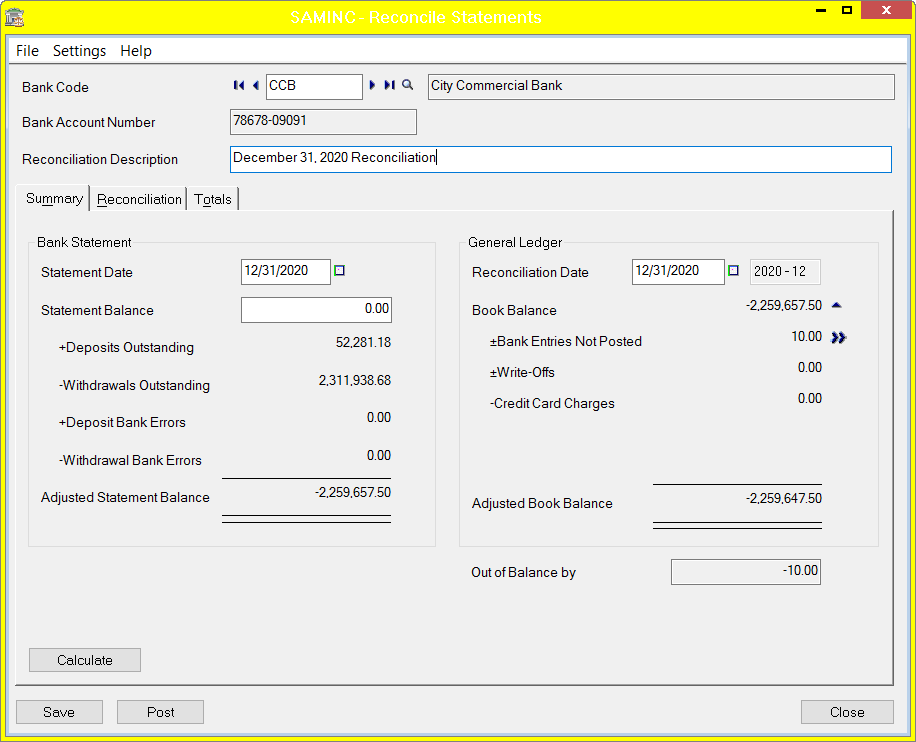
- Bank sub-ledger balance (Book Balance) is compared to the GL balance is compared to statement balance in the reconcile screen To refresh these numbers, possibly picking up newly entered transactions, select the calculate button.
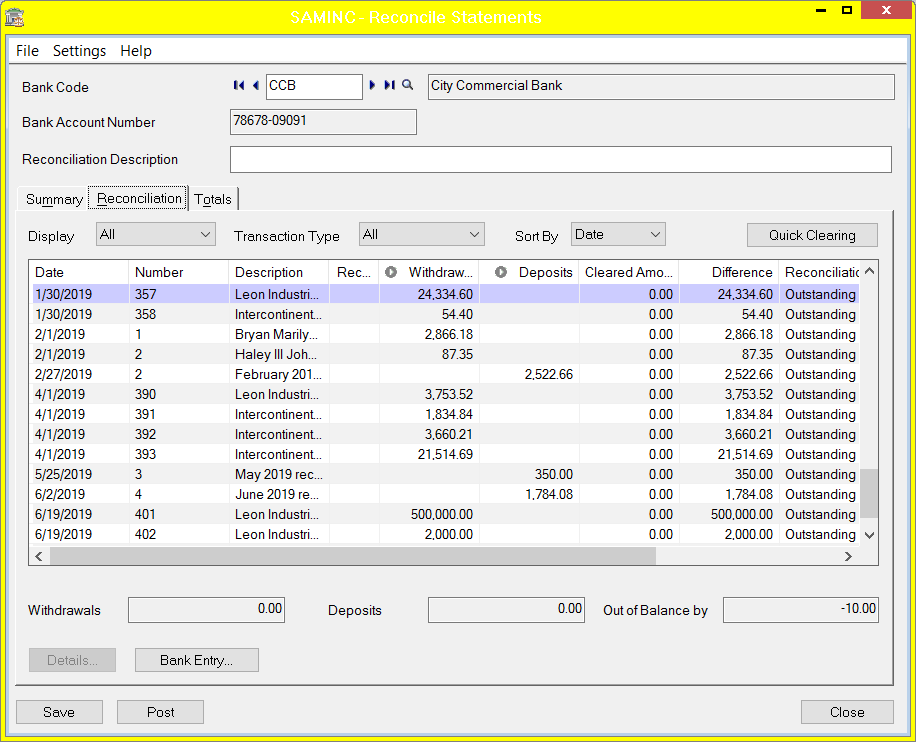
- Total deposits and total withdrawals in the reconcile detail screen (See the picture below, right above where it says "bank entry").
- You can reconcile deposits in detail. For example, if there are four credit card payments for a given posting date, of which post on one statement, and the last of which posts on another statement, you can clear just the four for the statement you are working on, and clear the last one on the next statement.
Recommended for Efficiency
- If your bank can output transactions in QuickBooks OFX format, you can import the transactions using the "import OFX Transactions" and the "Reconcile OFX Transactions" icons. This will have the advantage that the transactions have the correct date and other memo type detail already entered, saving time, and increasing detail in case of future audits. These two processes will be covered in a future blog article.
- In Setup, select the bank you are working on as the default bank code. In the example below, CCB has been selected. This way, you don't accidentally enter bank entries in the wrong bank.
- Reconcile deposits and compare to statement deposits total. The deposits in the statement should already have been entered in AR.
- Reconcile checks and compare to statement checks total. The checks should have already been entered in UP, CP, AP, or AR.
- Enter un-entered service charges and other withdrawals. For a bank statement, this might be as few as zero, but for a credit card statement, (credit card blog article) if you enter the charges after the fact like many companies do, there will be quite a few to enter. To speed that up
- Use the BK distribution codes to quickly select the correct GL account during data entry. For example, if you have a lot of marketing-related charges on the credit card, make up a code like MKTG which automatically points to the GL account for marketing expense. The example below uses "SC" to select the bank charges account.
- Be very careful to enter the date correctly.
- Turn off the auto-create GL Batch feature in GL integration and wait until the totals reconcile to 0 before posting the bank entries. That way, you can correct date and amount errors without reversing, and a slightly annoying posting detail message doesn't appear for every bank entry you make.
- Use the BK distribution codes to quickly select the correct GL account during data entry. For example, if you have a lot of marketing-related charges on the credit card, make up a code like MKTG which automatically points to the GL account for marketing expense. The example below uses "SC" to select the bank charges account.
- Reconcile all other withdrawals (e.g. service charges.
- Once the bank reconciles to the statement, then post the GL batch and make sure the bank reconciles to the GL. If it doesn’t, check the GL transaction files to see if there was a journal entry made directly to the GL account.
- If you thought there are entries that were accidentally made in a future date from the statement, it is fast and easy to change the date on the reconciliation to the end of the year and then go into the "reconcile" screen to see if those records appear with the wrong date.
Once you get the hang of this process, you will probably find like I have that you like Sage 300 reconciliations a whole lot better than Sage Pro or Quickbooks reconciliations.